![Roblox Scripts Hub [OFFICIAL 2026] » No Key Scripts](https://scripts-blox.com/wp-content/uploads/2025/11/Roblox-Script.webp)
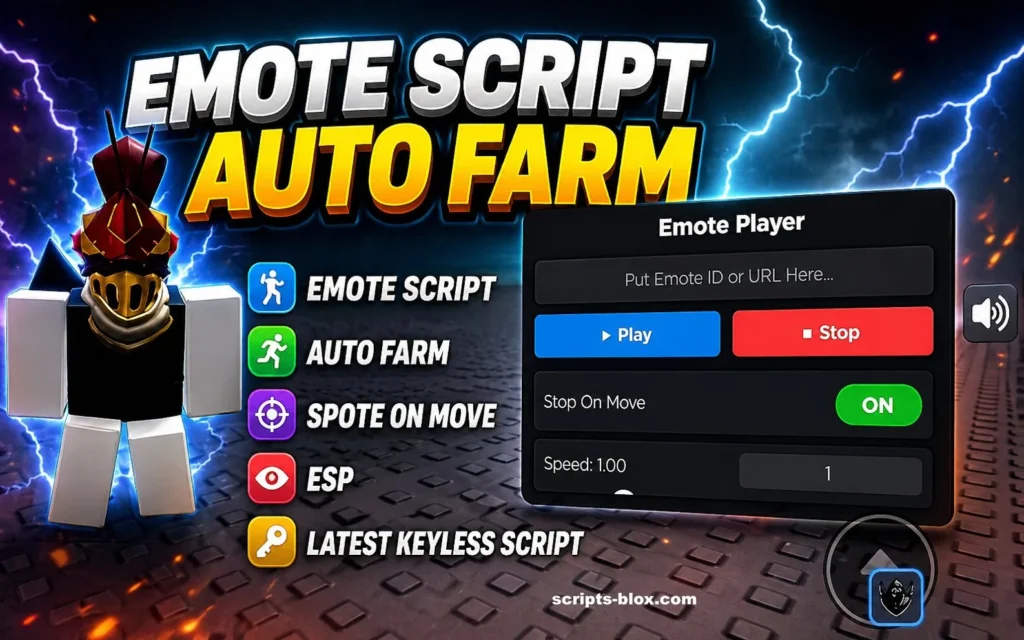
Creating interactive and expressive gameplay is a big part of what makes Roblox experiences enjoyable. One of the easiest ways to enhance player interaction is by adding emotes animations that let characters wave, dance, sit, or express emotions. An emote script in Roblox allows developers to trigger these animations through commands, UI buttons, or specific in-game events.
This article explains what an emote script is, how it works, and how you can implement one effectively in your Roblox game.
What Is an Emote Script?
An emote script is a piece of code that allows a player’s character to perform predefined animations. These animations can be triggered manually (like typing a command) or automatically (like reacting to an event).
Roblox already includes some default emotes, but custom scripts give you full control. You can:
- Add unique animations
- Customize triggers
- Create immersive roleplay systems
- Improve social interaction between players
How Emotes Work in Roblox
At the core of any emote system is the Humanoid object, which controls character animations. Scripts use the Humanoid to load and play animation assets.
Here’s a simple example of how an emote script works:
local player = game.Players.LocalPlayer

local character = player.Character or player.CharacterAdded:Wait()

local humanoid = character:WaitForChild("Humanoid")

local animation = Instance.new("Animation")

animation.AnimationId = "rbxassetid://YOUR_ANIMATION_ID"

local track = humanoid:LoadAnimation(animation)

-- Play the emote

track:Play()
This script loads an animation and plays it on the player’s character.
Also Read: Void Hub Script » Roblox [Keyless Script]
Latest Working Emote Script Roblox
local Players = game:GetService("Players")
local UserInputService = game:GetService("UserInputService")

local player = Players.LocalPlayer
local character = player.Character or player.CharacterAdded:Wait()
local humanoid = character:WaitForChild("Humanoid")

local gui = script.Parent
local emoteFrame = gui:WaitForChild("Frame")  -- Your main Frame

local currentTrack = nil

-- List of Emotes (Name = Animation ID)
-- You can add more from Roblox catalog or your own uploaded animations
local emotes = {
    ["Wave"] = "http://www.roblox.com/asset/?id=128777973",
    ["Point"] = "http://www.roblox.com/asset/?id=128853357",
    ["Cheer"] = "http://www.roblox.com/asset/?id=129423131",
    ["Laugh"] = "http://www.roblox.com/asset/?id=129423227",
    ["Dance"] = "http://www.roblox.com/asset/?id=182435998",   -- dance1
    ["Dance2"] = "http://www.roblox.com/asset/?id=182436842",
    ["Dance3"] = "http://www.roblox.com/asset/?id=182436933",
    ["Floss"] = "http://www.roblox.com/asset/?id=5915779043",  -- Popular one
    ["Dab"] = "http://www.roblox.com/asset/?id=4212499637",
}

-- Function to play emote
local function playEmote(emoteName)
    if currentTrack then
        currentTrack:Stop()
    end

    local animId = emotes[emoteName]
    if not animId then return end

    local animation = Instance.new("Animation")
    animation.AnimationId = animId

    currentTrack = humanoid:LoadAnimation(animation)
    currentTrack:Play()

    -- Auto stop when movement starts
    currentTrack.Stopped:Connect(function()
        currentTrack = nil
    end)
end

-- Create buttons dynamically
for emoteName, _ in pairs(emotes) do
    local button = Instance.new("TextButton")
    button.Name = emoteName
    button.Size = UDim2.new(0, 100, 0, 50)
    button.Text = emoteName
    button.Parent = emoteFrame
    button.BackgroundColor3 = Color3.fromRGB(50, 50, 50)
    button.TextColor3 = Color3.new(1, 1, 1)

    button.MouseButton1Click:Connect(function()
        playEmote(emoteName)
    end)
end

-- Optional: Open/Close with "E" key
UserInputService.InputBegan:Connect(function(input, gameProcessed)
    if gameProcessed then return end
    if input.KeyCode == Enum.KeyCode.E then
        emoteFrame.Visible = not emoteFrame.Visible
    end
end)

-- Handle character respawn
player.CharacterAdded:Connect(function(newChar)
    character = newChar
    humanoid = newChar:WaitForChild("Humanoid")
end)
Best Practices for Emote Scripts
To keep your game smooth and enjoyable, follow these tips:
Keep Animations Optimized
Avoid overly large or complex animations. Lightweight animations reduce lag and improve performance.
Prevent Animation Conflicts
Stop any currently playing animation before starting a new one:
track:Stop()
This prevents overlapping movements.
Use LocalScripts for Player Actions
Emotes should usually run on the client side for responsiveness. Place scripts in:
- StarterPlayerScripts
- StarterCharacterScripts
Add Cooldowns
Prevent spam by adding a short delay between emotes.
Custom Emotes and Animation IDs
To use custom emotes, you’ll need to upload animations using the Roblox Animation Editor. Once uploaded, you’ll get an Animation ID.
Replace this line in your script:
animation.AnimationId = “rbxassetid://YOUR_ANIMATION_ID”
With your actual animation ID.
Also Read: Bake or Die Script » Roblox [Keyless Script]
Enhancing Your Emote System
Once the basics are working, you can expand your system:
- Emote Wheel: A circular menu for selecting animations
- Group-based emotes: Unlock animations based on rank or achievements
- Sync emotes: Let players perform coordinated animations together
Sound integration: Add music or sound effects to emotes
Common Issues and Fixes
Animation not playing
- Make sure the Animation ID is correct
- Ensure the Humanoid exists
- Check that the animation is owned or accessible
Character freezes
- Stop previous animations before playing new ones
Emotes not triggering
- Verify event connections (chat, button clicks, etc.)
Conclusion
An emote script is a simple but powerful feature that enhances player interaction. By handling animations properly and structuring your scripts cleanly, you can build a responsive and enjoyable emote system that fits seamlessly into your Roblox game.